To properly add page numbers to an in-text citation in a standard author/year output style:
- In the body of your text, please click within the citation you would like to modify. Note: With EndNote X4 or later on the macOS, clicking on the citation may activate the hyperlink. If that is the case, hold down the [Option] key and then click on the citation to select it before following the steps below, or use the Right-Click or Control-click option.
- Right-Click (or Control click if you have a one button mouse on the Mac) on the item and choose "Edit Citation" from the popup menu.
Alternatively, you can get to Edit Citation using the following method:
Word 2007/2010/2013/2016/2019 with EndNote: Go to the EndNote™ tab and choose "Edit and Manage Citation(s)."
Word 2016/2019 macOS with EndNote X7 and later: Go to the EndNote tab and choose "Edit and Manage Citation(s)."
Word 2003/2004/2008/2011 with EndNote X4 and later: Go to the "Tools" Menu and choose "EndNote >Edit and Manage Citation(s)."
Word 2007 with Endnote X1/X2/X3: Go to the EndNote tab and choose "Edit Citation(s)."
Word 2007 with EndNote X and earlier: Go to the Add-Ins tab and choose "EndNote > Edit Citation(s)."
Word X/2000/2002 (XP)/2003/2004/2008/2011 with EndNote X3 and earlier: Go to the "Tools" Menu and choose "EndNote > Edit Citation(s)."
OpenOffice.org Writer 3.x: Go to the "Endnote" Menu and choose "Edit Citation(s)."
Pages 5: Click on the formatted reference in Pages.In the Pop-up window, add page numbers in the Suffix field as described below.
Pages '09: Go to the "Edit" Menu and choose "EndNote Citations> Manage Citations..." - If this is a group of citations, under "Citations in Document" select the one to which you want to add page numbers. Under "Formatted Citation", type the page numbers in the Suffix field (not the Pages field*).
- Be sure to include any spaces or punctuation you want to show up between the year and the pages, as this is not placed in automatically. Most likely, you'll want to put in something like ", p. 123", without the quotes.
- Click the "OK" button, and your pages should now appear in the citation.

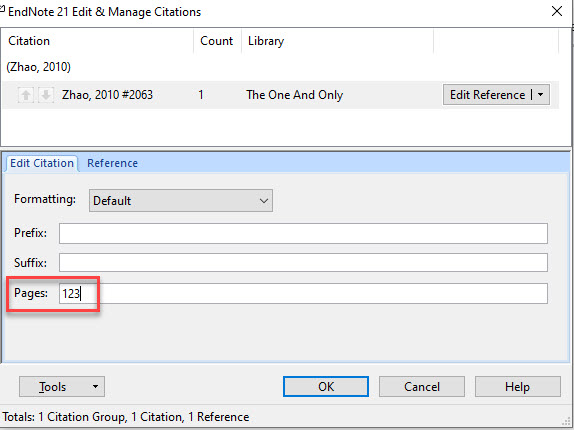
*When editing citations, the Pages field is available here mainly for when you are formatting your paper with citations in footnotes. We therefore generally suggest simply using the Suffix field to enter citation pages.
Note: While not typical, certain output styles (such as MLA) are configured to use the special "Cited Pages" field as part of the citation template, enabling you to enter citation page numbers into the Pages field or the Citation Range in Pages '09. Consult the Bibliographic Styles section of your EndNote Manual for details.