EndNote X3 and later:
These versions of EndNote™ include additional Output Style settings specifically for Microsoft Word. You can choose to:
- Create a complete bibliography at the end of each document (the default setting for almost all of the supplied output styles).
- Create a bibliography for each section in the document (as defined in the styles APA 6th (sections) and Chicago 15th B (sections).
- Create a bibliography for each section and also a complete bibliography at the end of the document.
If one of the Section Styles included with EndNote does not meet your needs or you wish to edit a Style to modify these settings, please follow these steps:
1. EndNote 20/21: Click on the Tools menu > Output Styles > Open Style Manager. EndNote X9 & prior: Click on the Edit menu > Output Styles > Open Style Manager.2. Browse to the Style you wish to use.3. Highlight the Style and click Edit.4. Click on the Sections option in the left pane of the Style to select the appropriate settings:
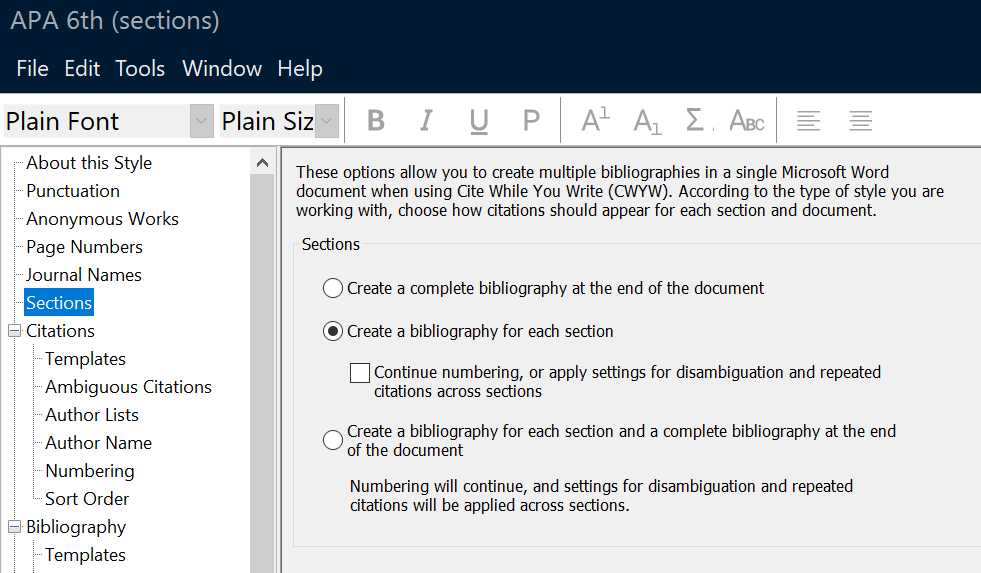 5. When you are done editing, click on the File menu and select Save As.6. Pick a name for the new copy of the Style and click Save.7. Click the File menu and select Close Style.8. Make sure your new Style is listed and then click File > Close Style Manager.9. Next, you need to make sure you have the document broken up into sections. You can make each chapter its own section:
Creating Section Breaks in Word:
Microsoft Word 2003/2004/2008/2011/2016/2019/2021/Office 365:
From the Insert menu, choose Breaks, and then select one of the four options under Section break types: Next Page, Continuous, Even Page, or Odd Page.
Microsoft Word 2007/2010/2013/2016/2019/2021/Office 365:
On the Page Layout tab, click on Breaks, and then choose one of the four options under Section Breaks: Next Page, Continuous, Even Page, or Odd Page.
EndNote X2 and prior versions:
While EndNote wasn't designed to create multiple bibliographies in the same document, the following set of instructions should help you create the output you need:
- Create each chapter as a separate document.
- When you are done with each chapter and have completed using it with EndNote, make a backup using the "Save As" option from the File menu.
- In each chapter document copy, in most versions of Word click "Remove Field Codes" from the EndNote toolbar.
In Word 2007 with EndNote X1 or later, go to the EndNote tab and choose the "Convert Citations and Bibliography > Convert to Plain Text" command.
This will remove the link between the document and EndNote. The document will now appear as plain text.
You can now copy and paste the text from the copy of your documents with no field codes into a master document.
Note: If you also want a master bibliography in addition to the chapter bibliographies, you will need to do the following:
- With the original copy of your chapter documents (the ones with field codes), in most versions of Word click Unformat Citation(s) from the EndNote toolbar.
In Word 2007 with EndNote X1 or later, go to the EndNote tab and choose the "Convert Citations and Bibliography > Convert to Unformatted Citations" command.
This will revert the citations to their temporary format and remove the bibliography. - Merge all the unformatted document chapters into a master document.
- In the master document, in most versions of Word, click on Format Bibliography from the EndNote toolbar.
In Word 2007 with EndNote X1 or later, go to the EndNote tab and choose the "Update Citations and Bibliography" command. - When this is done, make a backup of this master document using the Save As option from the File menu.
- In most versions of Word click on "Remove Field Codes" from the EndNote toolbar to make this copy of the master document plain text.
In Word 2007 with EndNote X1 or later, go to the EndNote tab and choose the "Convert Citations and Bibliography > Convert to Plain Text" command. - You can now copy the chapter bibliographies into this new master document from the copy of your chapter documents with the field codes removed.